- MovieSlate App
- MovieSlate Cloud
- KeyClips
- Videos
- Testimonials
- Press
- Accessories
- Support


Back
Frequently Asked Questions
We know you have them, here are answers to the common ones.
I'm connected to my BETSO WTCS-1's Wi-Fi but MovieSlate won't communicate with the slate. What are the correct steps to receive its timecode?The BETSO WTCS-1 syncs over Wi-Fi. In MovieSlate 26.0 and newer, after you choose to receive over Wi-Fi, MovieSlate shows a new Peer Picker so you can tap the exact slate you want to sync with. Here are the steps:
MovieSlate locks to the Betso, and the timecode display switches to the Betso's timecode. The sync status confirms you're receiving over Wi-Fi from the slate. If the Betso doesn't appear in the picker:
Still won't connect? Open iOS Settings > MovieSlate and confirm that Local Network and Notifications are enabled — these permissions are sometimes reset after a system update. |
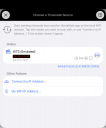
| One of many FAQs offered. |
|
Social
Follow @MovieSlate

|
|||||||
Copyright © 2009-26 PureBlend Corp. All rights reserved. MovieSlate®, Movie★Slate® and KeyClips® are registered trademarks of PureBlend Corp. | Privacy Policy | Terms of Use | Credits