- MovieSlate App
- MovieSlate Cloud
- KeyClips
- Videos
- Testimonials
- Press
- Accessories
- Support


Gallery
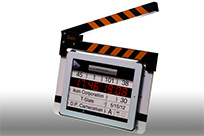
Gallery Learn More When a shot starts, a Siri-like voice can announce roll/scene/take, and other credits. Full-screen
credits animation can briefly display each piece of production meta such as: date, timecode, director,
DP, roll, scene, take, production, location, and many more. View credits animation
When a shot starts, a Siri-like voice can announce roll/scene/take, and other credits. Full-screen
credits animation can briefly display each piece of production meta such as: date, timecode, director,
DP, roll, scene, take, production, location, and many more. View credits animation
Ready, Set, Clap
MovieSlate’s clapper sticks start your shots, and automatically log them
Tap or shake.
Tap the clapper (or optionally shake your iPad, iPhone, or iPod) and the clapper opens and closes— producing an optional sync sound and animations. When the clapper closes, all production and shot data are saved to the History Log.
Get physical.
MovieSlate can detect claps from external iPad cases, like the ikan T-Slate. Now with MovieSlate 8 you can even use Denecke’s connected TS-TCB slate.Gallery Learn More
Action!
After tapping or shaking to start the shot, the clapper opens. You can set an optional delay before the clapper closes again— plenty of time to get your hand out of the shot.Roll Credits.
When a shot starts, a Siri-like voice can announce roll/scene/take, and other credits. Full-screen
credits animation can briefly display each piece of production meta such as: date, timecode, director,
DP, roll, scene, take, production, location, and many more. View credits animation
Take Control.
Moments after starting the shot, a “shot-in-progress” screen appears with buttons to:- Circle takes and ★-rate audio/video quality
- Create shot timecode-stamped text/image/voice notes
- Use Second Sticks
- Mark false takes
That’s a Wrap.
Tap the “End the Shot” button to save the Timecode out point to the History log. You can choose to display optional “end roll” credit animations to photograph at the end of each shot. Even show tail sticks when the shot ends.Click to play
Have it your way.
- Choose from various themes and clapper stick designs
- Customize slate font, color, timecode color, and hinges
- Add a custom production logo graphic
- Shake-to-clap (with optional delay)
- Detect external clapper sticks (like the iClapperboard or ikan T-Slate)
- Optionally show tail sticks when the shot ends
- Use Second Sticks and mark False Takes
- Credits leader and end animations
- Play and customize sound effects
- Auto-increment slate and take numbers
- Freeze timecode on clap
- Show color burst on clap
- Choose from over 20 flasher graphics— including various color bars

|
Social
Follow @MovieSlate

|
|||||||
Copyright © 2009-24 PureBlend Corp. All rights reserved. MovieSlate®, Movie★Slate® and KeyClips® are registered trademarks of PureBlend Corp. | Privacy Policy | Terms of Use | Credits