- MovieSlate App
- MovieSlate Cloud
- KeyClips
- Videos
- Testimonials
- Press
- Accessories
- Support

Timecode Cables
For use with MovieSlate’s optional Timecode Sync Plugin.
Apple Headphone Jack Adapters.
Some newer iOS devices lack a headphone jack, so Apple sells Lightning and USB-C adapters which will allow your iOS device to accept TRS and TRRS headphone cables.Apple Lightning to 3.5 mm Headphone Jack Adapter
If your iOS device has a Lightning port, and lacks a headphone jack (or its headphone jack is non-functional), then you can use Apple’s adapter to connect most TRS and TRRS headphone cables to your iOS device’s Lightning port. More InfoApple USB-C to 3.5 mm Headphone Jack Adapter
If your iOS device has a USB-C port, and lacks a headphone jack (or its headphone jack is non-functional), then you can use Apple’s adapter to connect some compatible TRS and TRRS headphone cables (see below) to your iOS device’s USB-C port. More InfoUSB-C Compatible Cables/Adapters
Not all TRS and TRRS cables will work on iOS devices with USB-C ports. Here are some that we have tested and found to function properly for receiving LTC timecode from external sources:Rode SC4 3.5mm TRS to TRRS Microphone Cable Adaptor
Run an unattenuated TRS cable from your LTC timecode source → to this Rode SC4 adapter → to “Apple’s USB-C to 3.5 mm Headphone Jack Adapter” → to your iPad. More InfoMovo MC3 3.5mm TRS to TRRS Adapter
Run an unattenuated TRS cable from your LTC timecode source → to this Movo adapter → to “Apple’s USB-C to 3.5 mm Headphone Jack Adapter” → to your iPad. More InfoSYIHLON USB C to Headphone Jack Adapter
Run an attenuated TRRS cable from your LTC timecode source → to this SYIHLON adapter → to your iPad. More InfoSources for the attenuated timecode cables for iOS.
Here is a list of cable options that we know or customers have indicated to work:Remote Audio BNC plug to 3.5mm TRRS plug (Model CATCiPBNC)
More InfoRemote Audio 5-pin Lemo-style M to 3.5mm TRRS plug (Model CATCiPL)
More InfoRemote Audio XLR3F to 3.5mm TRRS plug (Model CATCiPXLRF)
More InfoWireless Solutions.
Many MovieSlate users have reported success sending and receiving timecode audio wirelessly using transmitters and receivers like those from Comtek. A common workflow is to cable-connect the LTC output from a sound recorder to a wireless transmitter. Then cable-connect a wireless receiver to the iOS device(s) running MovieSlate.Cables for sending timecode.
When sending timecode from MovieSlate, use a standard, unattenuated cable— which you can purchase just about anywhere.Cables for receiving timecode.
When receiving timecode in MovieSlate, use a custom, attenuated cable as described below. Below are the three variables to take into account for the receiving cable:Headphone jack at the iOS end of the cable
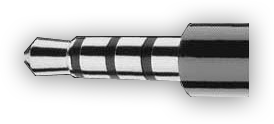 On the Apple iOS device end of the cable, this jack must be one with four distinct silver bands (as pictured at right).
Without those four bands, an iPad/iPhone/iPod touch won't be able to accept audio input.
On the Apple iOS device end of the cable, this jack must be one with four distinct silver bands (as pictured at right).
Without those four bands, an iPad/iPhone/iPod touch won't be able to accept audio input.
Denecke has also posted a PDF with the specifications for connecting LTC devices to the iPhone / iPad / iPod Touch.
Jack at other end of the cable
This jack must fit the sound source (such as your TC generator or sound recorder). Your sound source’s manual is a good place to find the type of plug required. Failing that, you could Google for that information.Attenuation
decreases the volume of the audio that the Apple iOS device receives. Depending upon your sound source, you may not need any attenuation. However, most pro-level sound equipment outputs at LINE level (very loud). All Apple iOS devices receive audio at MIC level (very quiet). If your sound source outputs LINE level audio, then it will easily overpower the poor Apple iOS device. So the audio must be attenuated (quieted). Attenuation may require a bit of trial and error. Not all sound sources (cameras, TC generators, and sound recorders) output audio at the same volume levels. If your sound source has an output volume control, then it is easy to test from MovieSlate’s Settings > Timecode Syncing > Test Headphone Connection. While viewing MovieSlate’s test screen, simply adjust the soure source’s volume until the test screen levels are green and timecode appears in the test screen. Some sound sources don't have a way to control their output volume. In these cases, if you find that the volume is too high for the Apple iOS device, then you'll need to also purchase an attenuating cable.Gotham Sound Timecode Roll Cable
Gotham Sound’s cable automatically rolls MovieSlate (and logs proper timecode) whenever the Sound Devices 788T rolls and cuts.https://www.gothamsound.com/library/hack-time-code
|
Social
Follow @MovieSlate

|
|||||||

Copyright © 2009-24 PureBlend Corp. All rights reserved. MovieSlate®, Movie★Slate® and KeyClips® are registered trademarks of PureBlend Corp. | Privacy Policy | Terms of Use | Credits