- MovieSlate App
- MovieSlate Cloud
- KeyClips
- Videos
- Testimonials
- Press
- Accessories
- Support


Back
Frequently Asked Questions
We know you have them, here are answers to the common ones.
I'm trying to back up to MovieSlate Cloud, but the MSCloud button is red and nothing happens when I tap it. There's no error message. How do I get my backup to go through?MovieSlate Cloud (MSCloud) backups are limited to 600 MB, because Apple restricts how much data an app can upload in one go. When MovieSlate estimates that your backup will be well over that limit, it turns the MSCloud button red and disables it, so you don't sit through a long upload that is certain to fail. Currently, tapping the red button gives no explanation, so it looks like nothing happened. (Running low on storage on your iPad is not the cause, so deleting projects won't help.) Get your MSCloud backup to go through
[Screenshot: Estimated Backup Size screen, with a green Estimated Zip Size and a blue MSCloud button] Use the Quick Bar to uncheck many files at onceTo the right of the SORT button is a row of five Quick Bar buttons, from left to right:
[Screenshot: The Quick Bar buttons beside the SORT button] Prefer to keep everything? Make a local backupLocal backups saved to your iPad, or sent with AirDrop / Files (for example to an iPhone or Mac), are not limited to 600 MB, because nothing is uploaded to the cloud. The green AirDrop / Files button on the same screen creates one, so you can keep every script PDF in that backup. Coming soon: A future update will show an alert when you tap the red MSCloud button, explaining the 600 MB limit and helping you choose files that fit. |
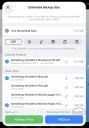
| One of many FAQs offered. |
|
Social
Follow @MovieSlate

|
|||||||

Copyright © 2009-26 PureBlend Corp. All rights reserved. MovieSlate®, Movie★Slate® and KeyClips® are registered trademarks of PureBlend Corp. | Privacy Policy | Terms of Use | Credits