-
-
MovieSlate App
-
MovieSlate Cloud
-
KeyClips
-
Videos
-
Testimonials
-
Press
-
Accessories
-
Support

Back Frequently Asked Questions
We know you have them, here are answers to the common ones.
Frequently Asked Question
Posted 11/25/2020
Will MovieSlate run on the Apple Silicon Macs?
Starting with MovieSlate 8.9.26 you can run MovieSlate on any Mac that uses an Apple M-series chip and macOS 11.0 (Big Sur) or newer. MovieSlate will not run on Macs powered by Intel chips.
Are my Pro Features or Script Dept purchases available when running on macOS? Yes, although some individual features are not available either because macOS does not offer touch-screen support for your Mac, or the hardware lacks sensors like accelerometers that iOS devices have built-in.
Are all workflows supported on macOS?
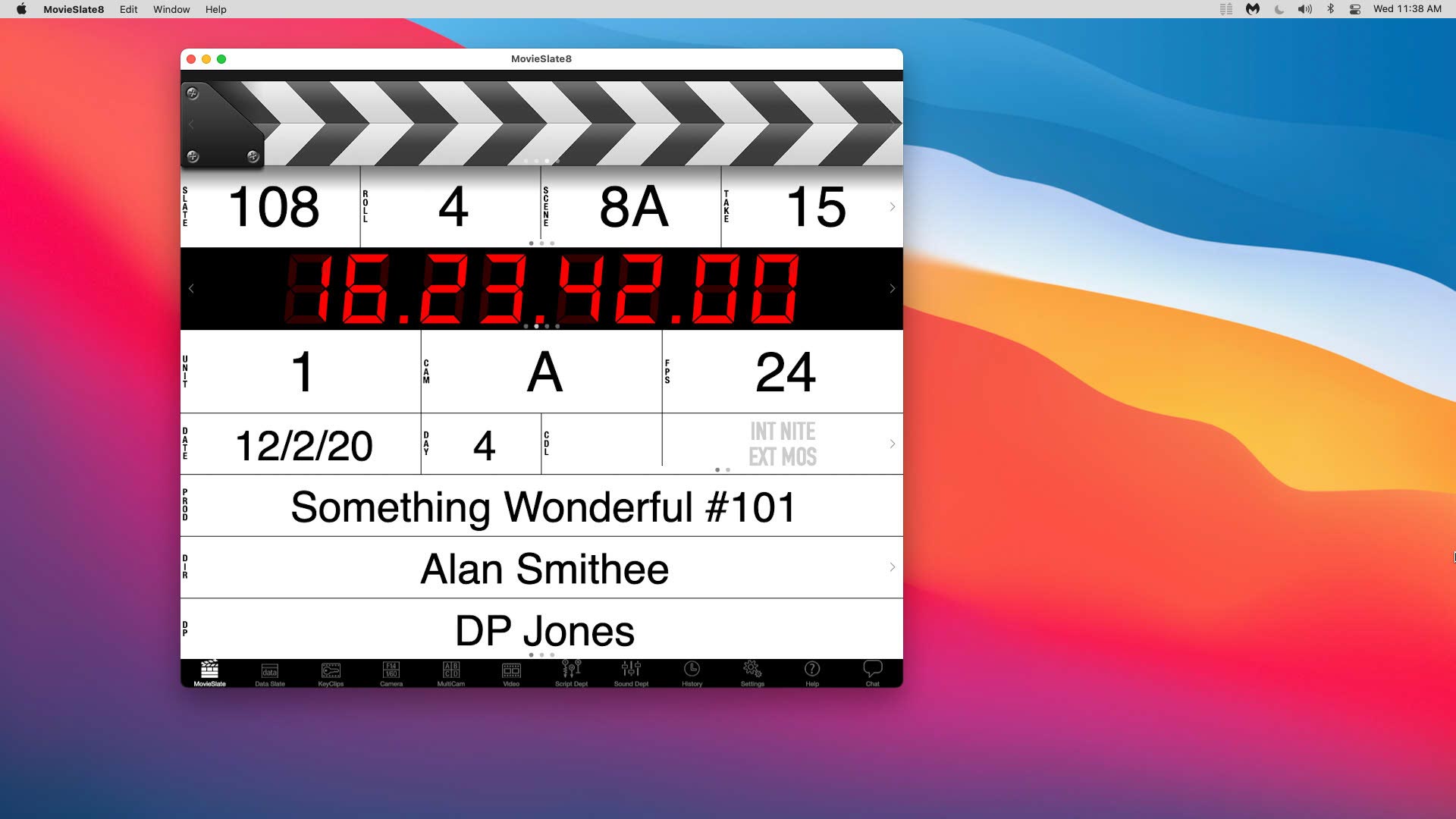
Yes. Script Dept users may find the iPad remains the best device for their workflow due to the excellent Apple Pencil styluses that are currently available only for iPads.
 MovieSlate 8 on Apple's M1 chip with macOS.
Can I connect to my external devices?
Yes, MovieSlate 8 on macOS (and later) supports:- Tentacle Sync E
- Timecode Systems UltraSync Blue
- Atomos AtomX SYNC
- Timecode Systems Wave and Pulse Smart Hubs
- BETSO WTCS-1 wireless slate
- Teradek Cube, Slice, ServPro
- Denecke TS-TCB wireless slate
External devices not supported: Are Email and AirDrop the only ways to get my Reports?
Email and Airdrop are fully supported but you may also access your reports from the Finder! On macOS MovieSlate has its very own folder inside your macOS Documents folder. There you can access reports and report archives as well as photo and audio note files and manually manage your script files (for Script Dept subscribers).
Can I choose where to save my reports?
There are apps available that will add more options to the macOS Share Sheet, including adding "Save as..." options so you can save your report where ever you wish. One of our favorites is Shareful on the Mac App Store: https://apps.apple.com/us/app/shareful/id1522267256?mt=12
Are all swipe gestures supported?
Some swipe gestures are not currently supported in macOS. We hope that this will change in the near future. For experienced MovieSlate users one of the most used gestures that's not supported are swipes up or down on fields to increment or decrement values.
Are third-party mice supported?
Besides Apple's Magic Trackpad, the Apple Magic Mouse allows trackpad-like swipe gestures on top of the mouse for scrolling. Third-party mice are supported, but you need to choose your scrolling settings appropriately. In System Preferences > General, make sure you have the "Show scroll bars" set to Automatic or Always. These two options allow you to use the mouse pointer to scroll MovieSlate's horizontal sliding features by click-hold-dragging the horizontal scroll bars.
What about Apple Pencil?
We love the Pencil, however you will have to use MovieSlate 8 on a supported iPad in order to use the Apple Pencil.
What's missing compared to the iOS version?
- No Denecke TS-TCB wireless timecode slate.
- No external clapper stick features.
- No Apple Pencil stylus.
- No shake to start Shot Trigger.
- Creation of Photo Notes on macOS devices without cameras.
- Creation of Audio Notes on macOS devices without a microphone.
What's in the macOS version that's not in the iOS version?
On macOS, MovieSlate's window can be resized and even be displayed full screen. On macOS, it's even easier to import Script PDFs into MovieSlate, and export Reports from MovieSlate.
How do I get started?
If you have not purchased MovieSlate 8: On your macOS device with the Apple M-series chip open the App Store app. Click on the search field and enter "MovieSlate". In the search results click on MovieSlate then click on the button showing the price of the app. The App Store may request your account password and then complete the purchase and install MovieSlate 8 in your Applications folder.
If you've already purchased MovieSlate 8: On your macOS device with an Apple M-series chip sign into the Mac App Store using the same Apple ID that you used to originally purchase MovieSlate 8.
Click on your account avatar in the lower-left corner of the App Store window. You will be presented with a list of previously purchased macOS and compatible iOS apps. Find MovieSlate and tap the iCloud download button to install MovieSlate on your Mac, it will appear in your Mac's Applications folder.
If you have subscriptions or in-app purchases you will need to activate these manually. Open MovieSlate 8 on your Mac, then click Settings > MovieSlate Store. In the section at the top of the store, Restore Purchases, click the blue Restore button. The App Store may ask for your account credentials and then contact Apple's receipt servers for permission to enable any MovieSlate 8 in-app purchases or subscriptions.
Additional images of MovieSlate 8 running on macOS
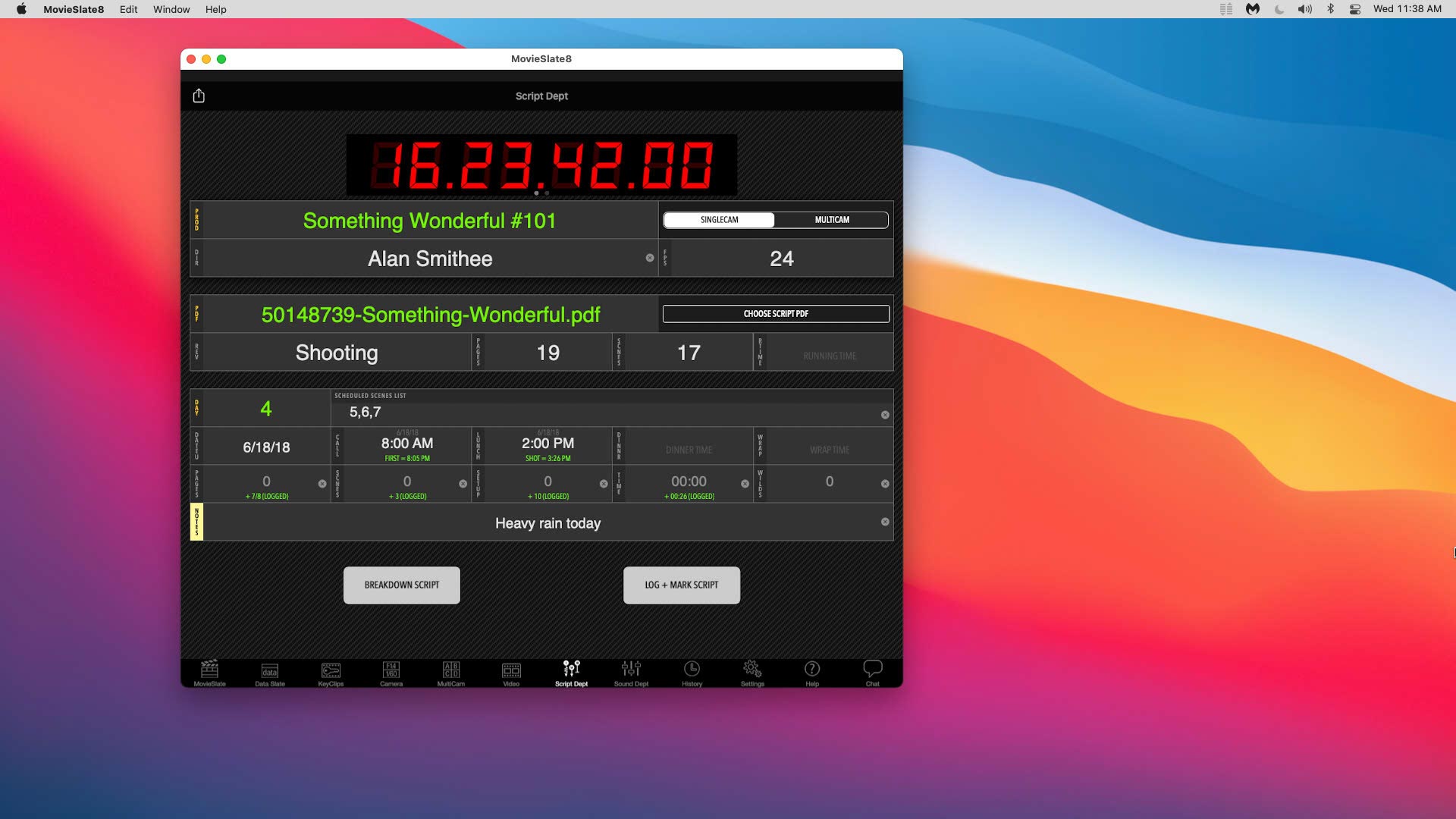
 Script Dept Subscription: Script Dept workflow on macOS.
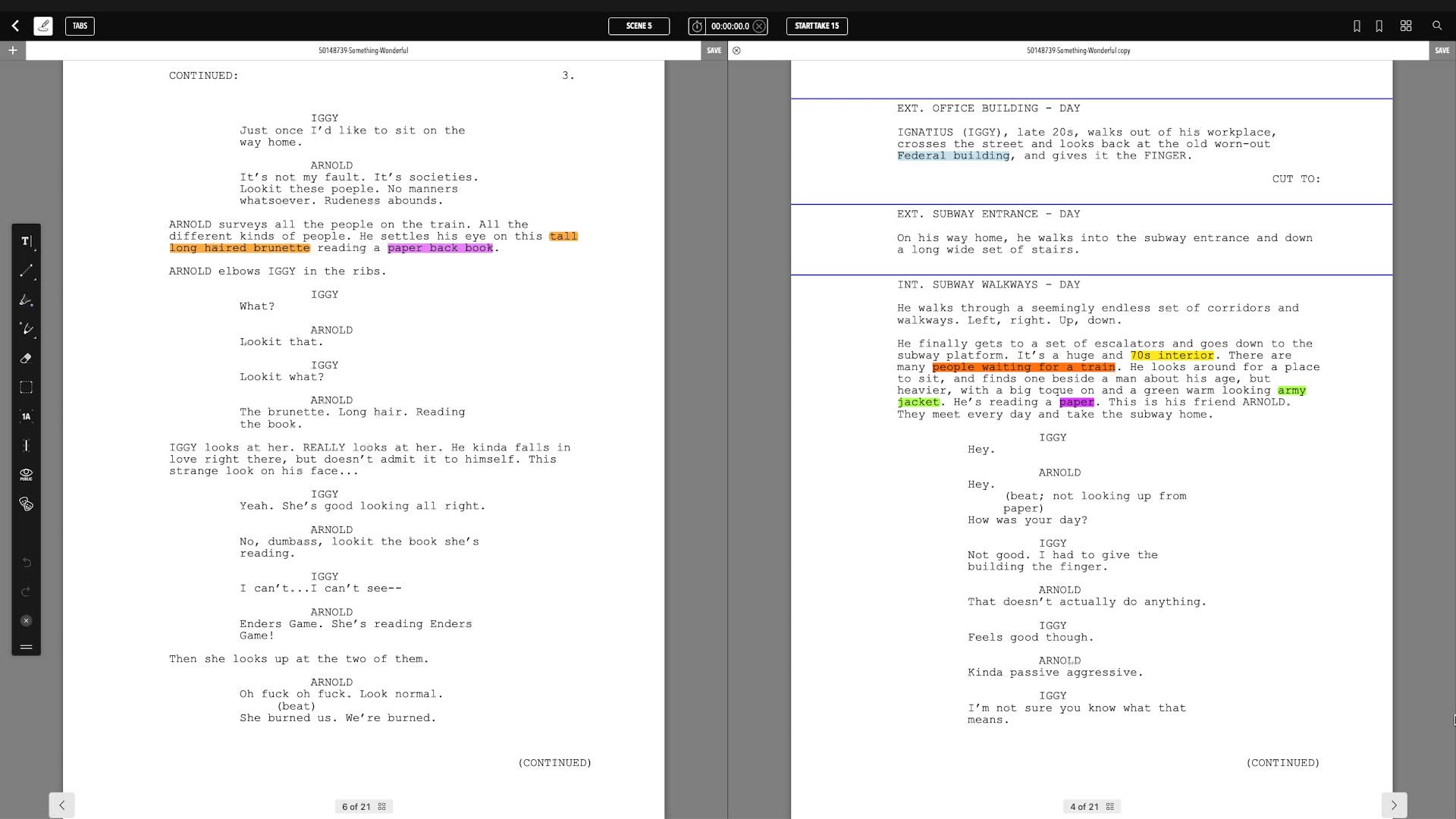
 Script Dept Subscription: Script markup with 2-up layout in full-screen view mode.
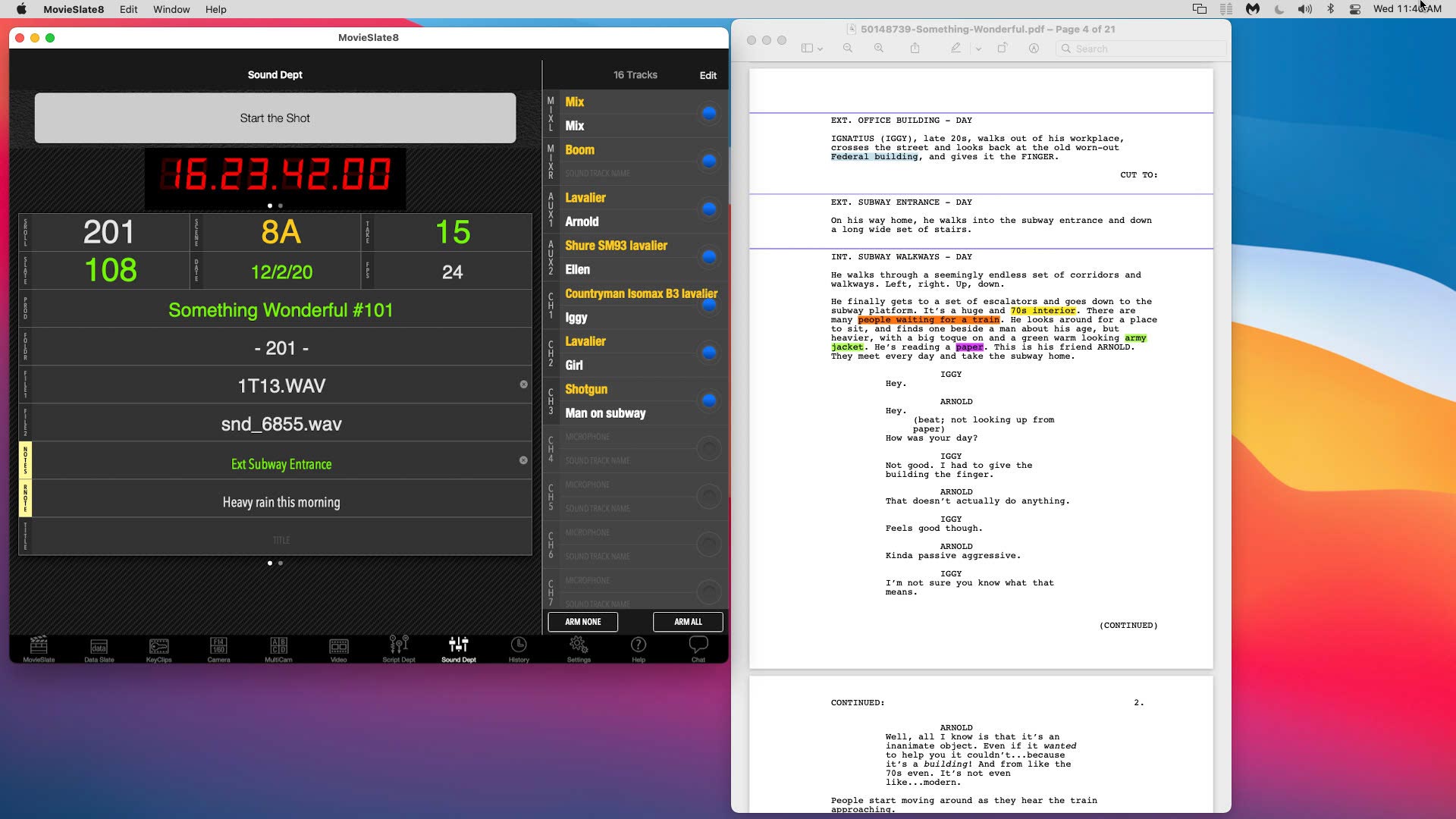
 Pro Features Subscription: Sound Dept workflow, viewing script PDF in Preview.app.
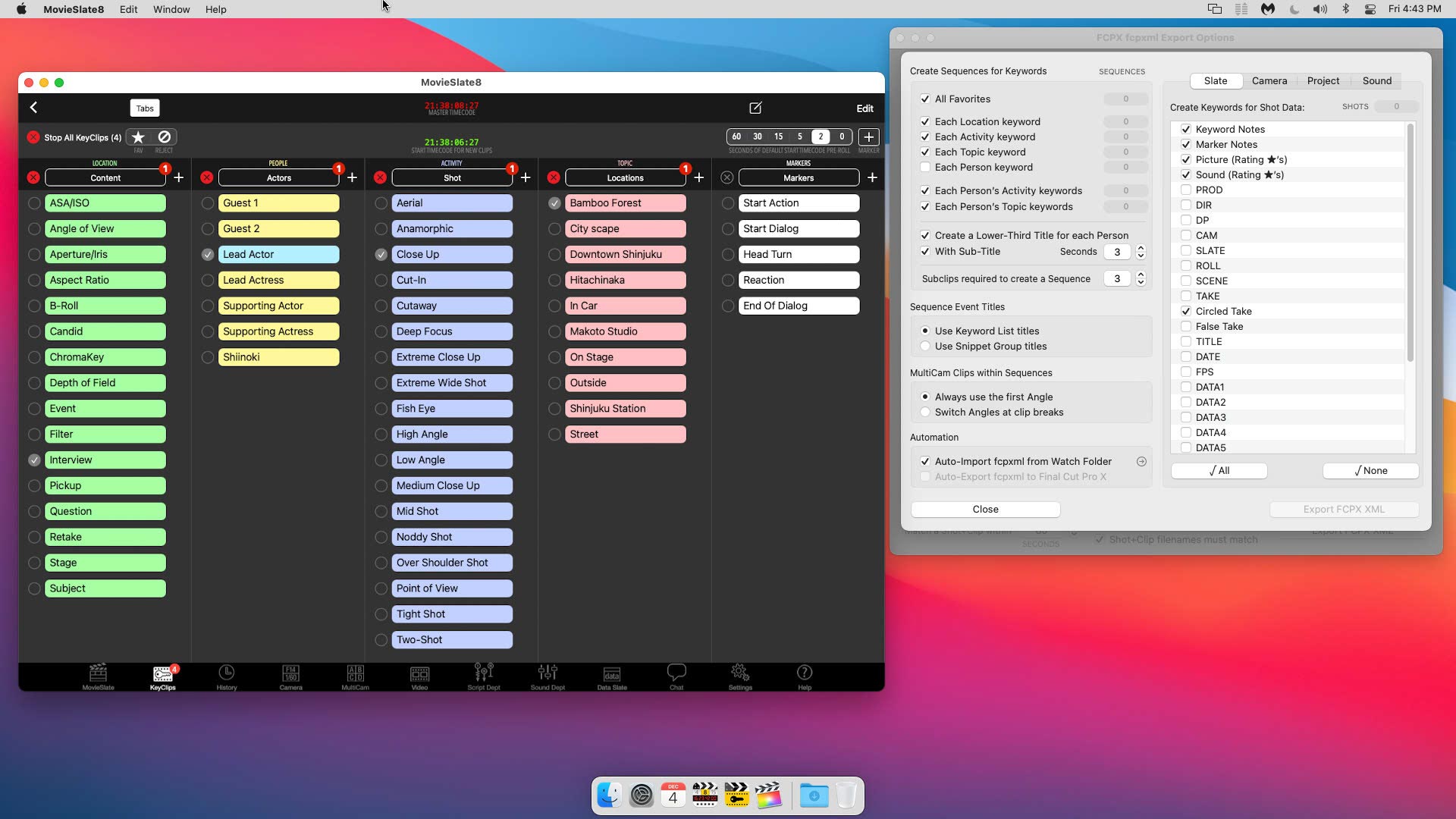
 Pro Features Subscription: KeyClips keyword logging workflow.
|
|
One of many FAQs offered. |
|